How to use CAD Workspace / طريقة استخدام مساحة عمل CAD
Open DWG and DXF drawings in the browser, navigate layers, measure and dimension, review with markups, compare two revisions, and run quantity takeoff and CAD survey tools.
افتح رسومات DWG وDXF في المتصفح، وتنقّل بين الطبقات، وقِس وأضف الأبعاد، وراجع بعلامات التدقيق، وقارن مراجعتين، وشغّل أدوات حصر الكميات ومساحة CAD.
Feature status: · حالة الميزة: Working · يعملPartial / experimental · جزئي / تجريبيNot available yet · غير متاح بعدKnown issue · مشكلة معروفة
What it is for · الغرض من الأداة
Use the CAD Workspace to review drawings without AutoCAD: check layers and text, take measurements and quantities, compare a revised drawing with the previous issue, and list survey coordinates. The drawing itself is read-only; your markups, dimensions and measurements are kept on separate review layers.
استخدم مساحة عمل CAD لمراجعة الرسومات دون AutoCAD: افحص الطبقات والنصوص، وخذ القياسات والكميات، وقارن الرسم المعدل بالإصدار السابق، واستخرج إحداثيات المساحة. الرسم نفسه للقراءة فقط؛ وتُحفظ علامات المراجعة والأبعاد والقياسات في طبقات مراجعة منفصلة.
There are three modes of the same workspace: Viewer (?cad=viewer), Quantity Takeoff (?cad=takeoff) and CAD Survey (?cad=survey). /cad/ opens the same tool.
هناك ثلاثة أوضاع لنفس مساحة العمل: Viewer (?cad=viewer) وQuantity Takeoff (?cad=takeoff) وCAD Survey (?cad=survey). والرابط /cad/ يفتح نفس الأداة.
Inputs and supported formats · المدخلات والصيغ المدعومة
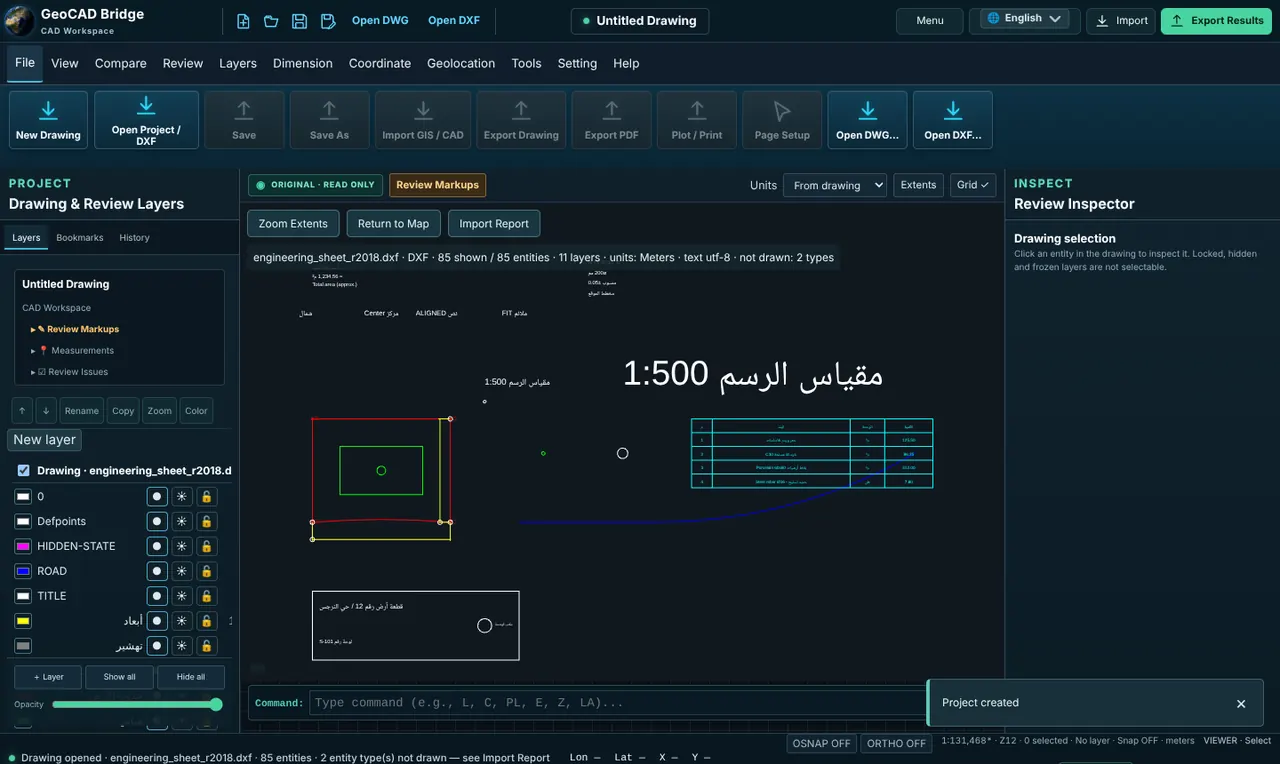
AutoCAD DWG R14 to 2018 (AC1014–AC1032), read in the browser with LibreDWG.
ملفات AutoCAD DWG من R14 حتى 2018 (AC1014–AC1032)، تُقرأ في المتصفح بمكتبة LibreDWG.
Any ASCII DXF version, including old R12/R14/R2000 files. Binary DXF is refused with a message.
أي إصدار ASCII DXF بما فيها الملفات القديمة R12/R14/R2000. ملف DXF الثنائي يُرفض برسالة.
Old Windows-1256 drawings and \U+ escapes are decoded so Arabic labels read correctly.
تُفك ترميزات Windows-1256 القديمة وصيغ \U+ لتظهر النصوص العربية بشكل صحيح.
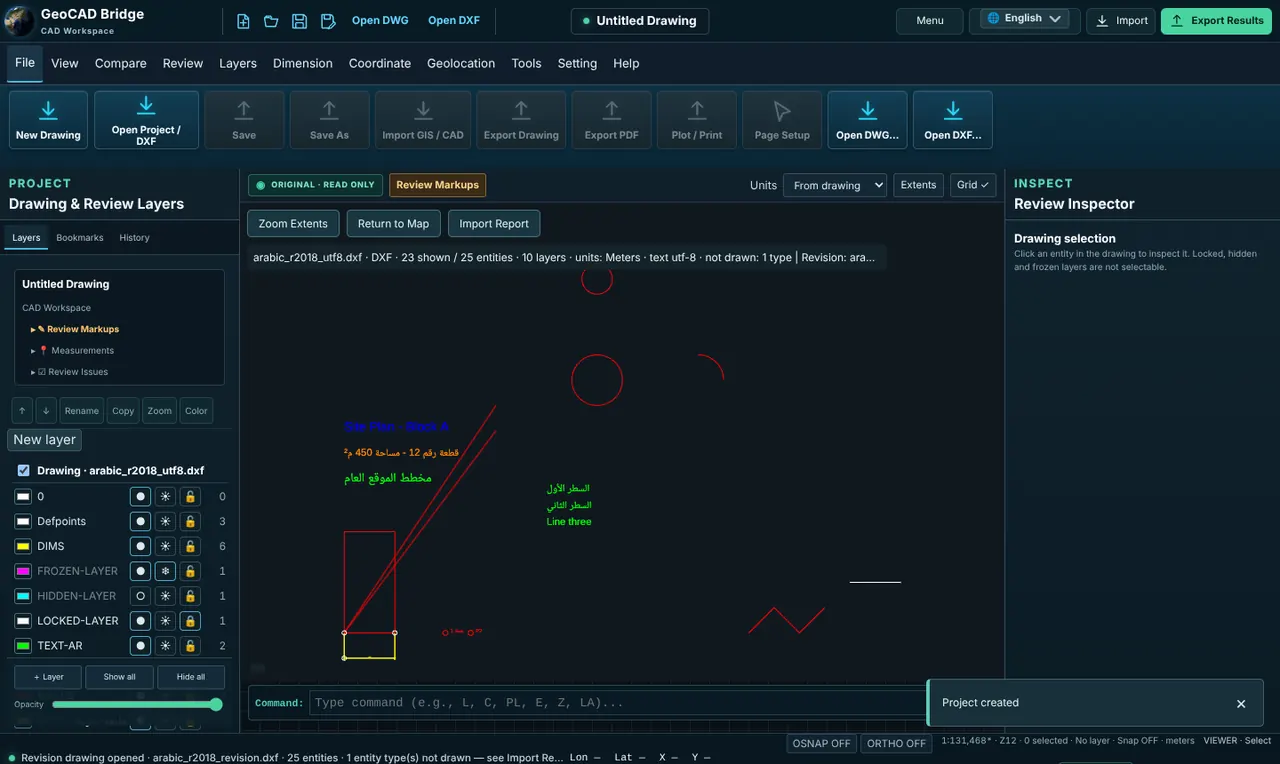
A second DWG/DXF loaded with Compare → Import Revised.
رسم DWG/DXF ثانٍ يُحمَّل من Compare ← Import Revised.
Step by step · خطوة بخطوة
Open a drawing
افتح رسماً
Click Open DWG or Open DXF in the header (or drop the file on the canvas). The info bar shows the entity count, the drawing units and "not drawn: N types" for entities the viewer cannot draw; Import Report lists them.
اضغط Open DWG أو Open DXF في الشريط العلوي (أو اسحب الملف إلى اللوحة). يعرض شريط المعلومات عدد العناصر ووحدات الرسم وعبارة «not drawn: N types» للعناصر التي لا يرسمها العارض؛ ويعرضها Import Report بالتفصيل.
Navigate
تنقّل
Wheel to zoom, drag to pan, or use View → Zoom In, Zoom Out, Zoom Extents, Zoom Window, Pan and Regen. Command aliases work too: Z or ZE zooms to extents, RE regenerates.
استخدم عجلة الفأرة للتكبير والسحب للتحريك، أو View ← Zoom In وZoom Out وZoom Extents وZoom Window وPan وRegen. تعمل اختصارات الأوامر أيضاً: Z أو ZE لعرض الكل وRE لإعادة التوليد.
Work with layers
تعامل مع الطبقات
Layers → Layer Properties Manager lists every layer with on/off, freeze/thaw, lock/unlock and colour. Renaming changes the display name only, not the file.
Layers ← Layer Properties Manager يعرض كل طبقة مع الإظهار/الإخفاء والتجميد/الإذابة والقفل/الفتح واللون. إعادة التسمية تغيّر اسم العرض فقط وليس الملف.
Measure and dimension
قِس وأضف الأبعاد
Review → Measure Distance or Measure Area (aliases DI and AA), or Dimension → Linear, Aligned, Angular, Radius, Diameter. Snap to endpoints with F3, ortho with F8. Results are given in drawing units with m, ft and ha conversions; set the Units selector if the drawing has no unit.
Review ← Measure Distance أو Measure Area (الاختصاران DI وAA)، أو Dimension ← Linear وAligned وAngular وRadius وDiameter. الالتقاط على نقاط النهاية بـF3 والتعامد بـF8. تظهر النتائج بوحدات الرسم مع التحويل إلى م وقدم وهكتار؛ اضبط قائمة Units إذا لم يكن للرسم وحدة.
Mark up
أضف علامات المراجعة
Review → Markup Line, Polyline, Rectangle, Circle or Review Point draws on the Review Markups layer. Select & Inspect shows an entity's type, layer and geometry. Undo/Redo Markup step through your markups.
Review ← Markup Line أو Polyline أو Rectangle أو Circle أو Review Point يرسم على طبقة Review Markups. وSelect & Inspect يعرض نوع العنصر وطبقته وهندسته. وUndo/Redo Markup للتراجع والإعادة.
Coordinates and CRS
الإحداثيات ونظام الإحداثيات
Coordinate → Coordinate library, EPSG Search, CRS Validation, Transform Coordinates and Display CRS assign the drawing's coordinate system and convert picked points.
Coordinate ← Coordinate library وEPSG Search وCRS Validation وTransform Coordinates وDisplay CRS تحدد نظام إحداثيات الرسم وتحوّل النقاط المختارة.
Drawing comparison · مقارنة الرسومات
Compare the open drawing (base) with a revised issue.
قارن الرسم المفتوح (الأساس) بإصدار معدل.
Load the revision
حمّل المراجعة
Compare → Import Revised DWG/DXF.
Compare ← Import Revised DWG/DXF.
Align
المحاذاة
If the two drawings are not in the same coordinates, use Pick 2-Point or Pick 3-Point Alignment and click matching points in both.
إذا لم يكن الرسمان على نفس الإحداثيات، استخدم Pick 2-Point أو Pick 3-Point Alignment واضغط النقاط المتقابلة في الرسمين.
Compare
قارن
Set the tolerance and click Align & Compare. The results panel counts added, removed, modified and unchanged entities; Overlay, Blink and Zoom to Comparison help you look at each change. Export the list as drawing-comparison.csv.
حدّد السماحية واضغط Align & Compare. تعرض لوحة النتائج عدد العناصر المضافة والمحذوفة والمعدلة وغير المتغيرة؛ وتساعدك Overlay وBlink وZoom to Comparison على رؤية كل تغيير. صدّر القائمة إلى drawing-comparison.csv.
Quantity Takeoff (?cad=takeoff) · حصر الكميات (?cad=takeoff)
Adds the QS Main, QS QA/QC and QS Reports tabs.
يضيف تبويبات QS Main وQS QA/QC وQS Reports.
Measure quantities
قِس الكميات
Full Takeoff measures areas and Create Measurement measures lengths on the drawing. Arcs and bulges are measured exactly, not as chords.
Full Takeoff يقيس المساحات وCreate Measurement يقيس الأطوال على الرسم. تُقاس الأقواس بدقة وليس كأوتار.
Record the results
سجّل النتائج
Each measurement shows its value in drawing units with m, ft and ha conversions; copy them into your BOQ sheet. Export Package opens the Export Results dialog only when no drawing is open. BOQ items, deductions, approvals, baselines and VO tables are shown but not available yet.
كل قياس يعرض قيمته بوحدات الرسم مع التحويل إلى م وقدم وهكتار؛ انسخها إلى جدول الكميات. Export Package يفتح نافذة Export Results فقط عندما لا يكون هناك رسم مفتوح. بنود BOQ والخصومات والاعتمادات والمرجع الأساسي وجداول الأوامر التغييرية ظاهرة لكنها غير متاحة بعد.
CAD Survey (?cad=survey) · مساحة CAD (?cad=survey)
Adds DATA, SURVEY, CAD and KML/KMZ tabs for surveyors.
يضيف تبويبات DATA وSURVEY وCAD وKML/KMZ للمساحين.
Coordinates
الإحداثيات
SURVEY → Coordinates lists the vertices of the selected entities with their coordinates.
SURVEY ← Coordinates يعرض رؤوس العناصر المحددة بإحداثياتها.
Bearing & Distance
الاتجاه والمسافة
Bearing & Distance lists each leg of a boundary; curved legs show radius, arc length and delta angle.
Bearing & Distance يعرض كل ضلع من الحدود؛ والأضلاع المنحنية تعرض نصف القطر وطول القوس والزاوية المركزية.
Buttons, tabs and commands · الأزرار والتبويبات والأوامر
Open drawings and switch language.
فتح الرسومات وتغيير اللغة.
All viewer commands.
كل أوامر العارض.
AutoCAD-style aliases: L, PL, C, REC, P, A, DI, AA, E, M, CO, RO, SC, Z/ZE, RE, LA, U, REDO, TR, EX, CRS/UNITS.
اختصارات بأسلوب AutoCAD: L وPL وC وREC وP وA وDI وAA وE وM وCO وRO وSC وZ/ZE وRE وLA وU وREDO وTR وEX وCRS/UNITS.
Esc cancels, Backspace removes the last point, Enter/right-click/double-click finishes, F3 snap, F8 ortho.
Esc للإلغاء، وBackspace لحذف آخر نقطة، وEnter أو النقر الأيمن أو المزدوج للإنهاء، وF3 للالتقاط، وF8 للتعامد.
From drawing, m, mm, cm, ft, US survey ft, in or unitless.
From drawing أو م أو مم أو سم أو قدم أو قدم المساحة الأمريكي أو بوصة أو بدون وحدة.
Shown greyed out: the drawing is read-only and printing is not implemented yet.
تظهر باهتة: الرسم للقراءة فقط والطباعة غير منفذة بعد.
Outputs · المخرجات
List of added, removed and modified entities.
قائمة العناصر المضافة والمحذوفة والمعدلة.
Lengths, areas, angles, radii in drawing units with m/ft/ha.
الأطوال والمساحات والزوايا وأنصاف الأقطار بوحدات الرسم مع م/قدم/هكتار.
Not available: the drawing is opened read-only.
غير متاح: يُفتح الرسم للقراءة فقط.
Practical example · مثال عملي
Example: check a revised site plan before approval
مثال: مراجعة مخطط موقع معدل قبل الاعتماد
Open DWG → Site_Plan_RevA.dwg. Check the info bar: units metres, "not drawn" lists only hatches.
Open DWG ← Site_Plan_RevA.dwg. راجع شريط المعلومات: الوحدات بالمتر، و«not drawn» يذكر التهشير فقط.
Compare → Import Revised DWG/DXF → Site_Plan_RevB.dwg, tolerance 0.01, Align & Compare.
Compare ← Import Revised DWG/DXF ← Site_Plan_RevB.dwg، والسماحية 0.01، ثم Align & Compare.
Use Blink on each modified item, add a Review Point with a note where the boundary moved, and measure the new setback with DI.
استخدم Blink على كل عنصر معدل، وأضف Review Point مع ملاحظة حيث تغيرت الحدود، وقِس الارتداد الجديد بالأمر DI.
Export drawing-comparison.csv and attach it to your review comments.
صدّر drawing-comparison.csv وأرفقه بملاحظات المراجعة.
Limitations · القيود
- Partial / experimental · جزئي / تجريبي
SHX fonts are replaced by a TrueType substitute, so text width can differ slightly from AutoCAD.
تُستبدل خطوط SHX بخط TrueType بديل، فقد يختلف عرض النص قليلاً عن AutoCAD.
- Partial / experimental · جزئي / تجريبي
Not drawn yet: HATCH, MULTILEADER, LEADER, MLINE, TRACE, HELIX, RAY, XLINE, WIPEOUT, 3DSOLID, REGION, SURFACE, UNDERLAY, ACAD_TABLE, IMAGE and OLE objects. The info bar and Import Report show how many were skipped.
لا تُرسم بعد: HATCH وMULTILEADER وLEADER وMLINE وTRACE وHELIX وRAY وXLINE وWIPEOUT و3DSOLID وREGION وSURFACE وUNDERLAY وACAD_TABLE وIMAGE وكائنات OLE. ويعرض شريط المعلومات وImport Report عدد ما تم تخطيه.
- Not available yet · غير متاح بعد
Model space only: paper space layouts and viewports are not shown.
فضاء النموذج فقط: لا تُعرض لوحات فضاء الورق ونوافذ العرض.
- Not available yet · غير متاح بعد
No drawing export or printing: Save, Export Drawing, Plot and Export PDF are disabled. Many QS tools (Load BOQ, BOQ Item, Add Deduction, Validate, Approve Item, Save Baseline, VO Table, Snapshot) and some survey tools (Export Points, Stationing, Spot Level, Coordinate Grid, CAD Clean, Import KML/KMZ) are visible but not available yet.
لا يوجد تصدير للرسم أو طباعة: Save وExport Drawing وPlot وExport PDF معطلة. كثير من أدوات QS (Load BOQ وBOQ Item وAdd Deduction وValidate وApprove Item وSave Baseline وVO Table وSnapshot) وبعض أدوات المساحة (Export Points وStationing وSpot Level وCoordinate Grid وCAD Clean وImport KML/KMZ) ظاهرة لكنها غير متاحة بعد.
- Partial / experimental · جزئي / تجريبي
Arabic text shaping has been verified in Chromium-based browsers (Chrome, Edge).
تم التحقق من تشكيل النص العربي في المتصفحات المبنية على Chromium (Chrome وEdge).
- Working · يعمل
Lengths and areas of arcs and bulged polylines are computed exactly and were checked against an independent reference.
تُحسب أطوال ومساحات الأقواس والخطوط المتعددة المنحنية بدقة وتم التحقق منها مقابل مرجع مستقل.
Troubleshooting · حل المشكلات
"Binary DXF is not supported"
رسالة «Binary DXF is not supported»
Save the drawing as ASCII DXF, or open the DWG directly.
احفظ الرسم بصيغة ASCII DXF، أو افتح ملف DWG مباشرة.
DWG does not open
ملف DWG لا يُفتح
Files newer than AutoCAD 2018 format may fail. In AutoCAD, SAVEAS to 2018 DWG or to DXF and try again.
قد تفشل الملفات الأحدث من صيغة AutoCAD 2018. في AutoCAD احفظ بصيغة DWG 2018 أو DXF وحاول مجدداً.
Parts of the drawing are missing
أجزاء من الرسم مفقودة
Check "not drawn" in the info bar and Import Report. Hatches, tables and images are not drawn yet; frozen or off layers are hidden in Layer Properties Manager.
راجع «not drawn» في شريط المعلومات وImport Report. التهشير والجداول والصور لا تُرسم بعد؛ والطبقات المجمدة أو المخفية تظهر في Layer Properties Manager.
Measurements look 1000 times too large
القياسات أكبر ١٠٠٠ مرة
The drawing is in millimetres. Set the Units selector to mm.
الرسم بالمليمتر. اضبط قائمة Units على mm.
Arabic labels are boxes or reversed
النصوص العربية مربعات أو معكوسة
Use Chrome or Edge. Very old drawings in other code pages may still need re-saving from AutoCAD.
استخدم Chrome أو Edge. الرسومات القديمة جداً بترميزات أخرى قد تحتاج إعادة حفظ من AutoCAD.
Tips and common mistakes · نصائح وأخطاء شائعة
Use Zoom to Comparison after Align & Compare to frame only the changed area.
استخدم Zoom to Comparison بعد Align & Compare لعرض المنطقة المتغيرة فقط.
Need more help? Send us a message from the Support page.
تحتاج مساعدة أكثر؟ أرسل لنا رسالة من صفحة الدعم.
Last updated 2026-10-24 · آخر تحديث 2026-10-24